> For the complete documentation index, see [llms.txt](https://docs.peakcommerce.com/llms.txt). Markdown versions of documentation pages are available by appending `.md` to page URLs; this page is available as [Markdown](https://docs.peakcommerce.com/product/journeys-and-pages/journey-steps/managing-journey-steps.md).
# Managing Journey Steps
Steps are managed in the journey builder: **Content → Journeys → Edit → Steps**.
## The step editor
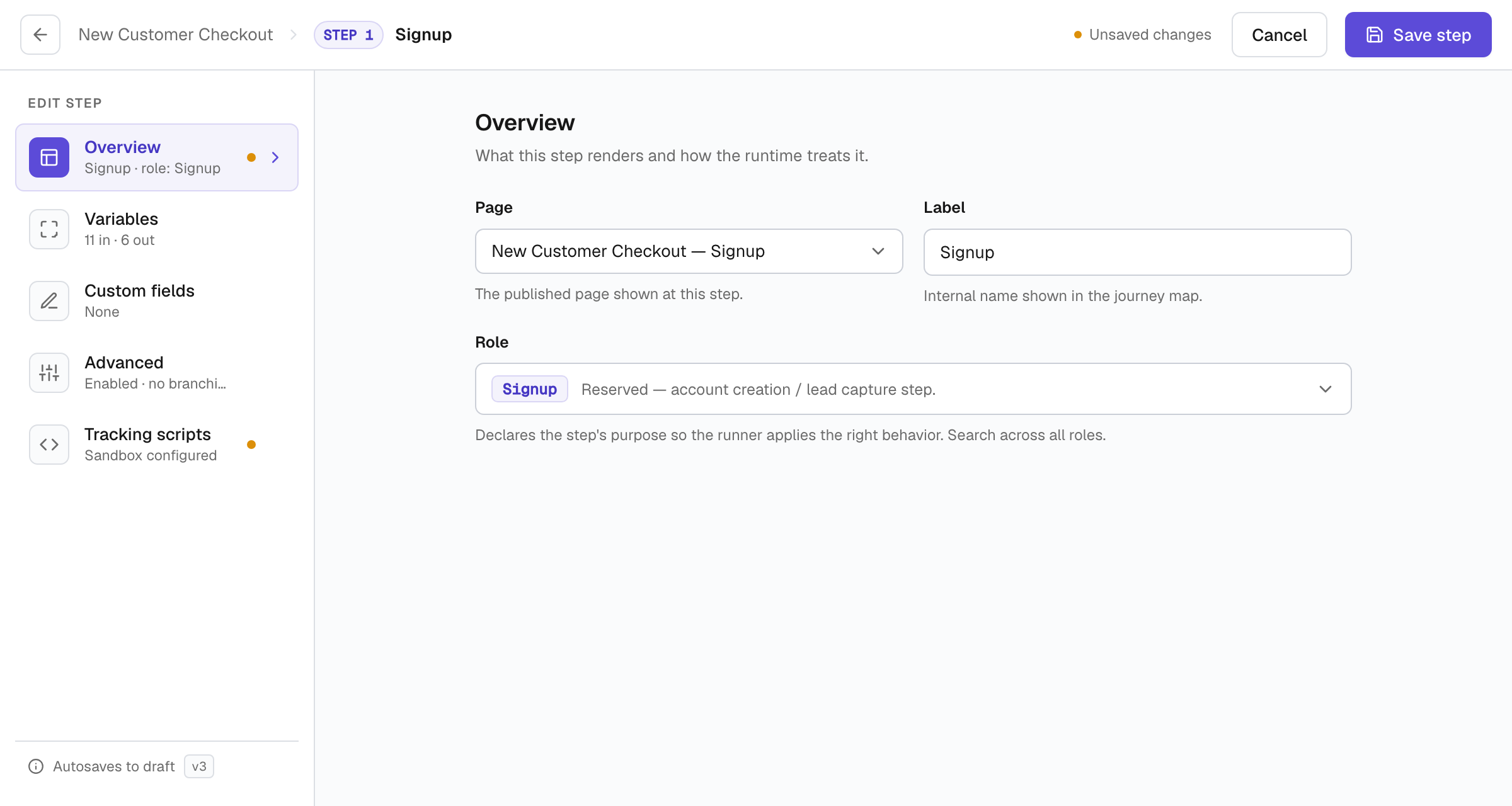
Adding a step, or opening one with the edit pencil, launches a full-page editor. Its settings are grouped into sections listed in the left rail — select a section to edit it. You work on one section at a time, so the editor stays compact instead of one long scroll.
The step editor — choose a section in the left rail; the Overview pane sets the step's page, label, and role.
* **Overview** — the **Page** the step renders, its **Label** (shown in the journey's navigation), and an optional **Role**. The role picker is searchable — type to filter the full list by name or description (see [Step roles](/product/journeys-and-pages/journey-steps/journey-step-types.md)).
* **Variables** — **Input variables** the step reads from the journey context, and **Output variables** it writes for later steps to use.
* **Custom fields** — optional extra key/value data attached to the step.
* **Advanced** — **Disable this step** and **Configure branching** (see below).
* **Tracking scripts** — per-environment analytics snippets that run on this step's page, extending your tenant-wide scripts.
A dot beside a section marks unsaved edits there. Click **Save step** to save everything — including any tracking-script changes — in a single action.
## Add a step
1. On the **Steps** tab, click **Add step**.
2. In **Overview**, choose the **Page**, give the step a **Label**, and *(optional)* set a **Role**.
3. In **Variables**, define the step's data flow:
* **Input variables** — context values the step reads.
* **Output variables** — context values the step writes for later steps.
4. *(Optional)* add **Custom fields**.
5. Click **Save step**.
Steps run in the order shown; drag to reorder them.
## Disable or branch
Both live under the editor's **Advanced** section:
* **Disable this step** — hides the step from the runtime without deleting it; it's skipped on advance/back and can be re-enabled anytime.
* **Configure branching** — send customers down different paths based on their choices; the **Flow** tab visualizes the branches.
## Commerce actions
Beyond rendering a page, each step can run **commerce actions** — create an order, create or update an account, run a fraud check, record the order in PeakCommerce, and more. Expand a step to manage them under **Commerce actions**. See [Commerce Actions](/product/journeys-and-pages/journey-steps/commerce-actions.md) for action targets (internal vs integration), blocking vs async execution, field mapping, and required (locked) actions.
When you're done, click **Done**, then **Publish** the journey to make the changes live.
---
# Agent Instructions
This documentation is published with GitBook. GitBook is the documentation platform designed so that both humans and AI agents can read, navigate, and reason over technical content effectively. Learn more at gitbook.com.
## Querying This Documentation
If you need additional information that is not directly available in this page, you can query the documentation dynamically by asking a question.
Perform an HTTP GET request on the current page URL with the `ask` query parameter, and the optional `goal` query parameter:
```
GET https://docs.peakcommerce.com/product/journeys-and-pages/journey-steps/managing-journey-steps.md?ask=&goal=
```
`ask` is the immediate question: it should be specific, self-contained, and written in natural language.
`goal` is optional and describes the broader end goal you are ultimately trying to accomplish on behalf of the user. GitBook uses it to tailor the answer towards what is most useful for that goal.
The response will contain a direct answer to the question and relevant excerpts and sources from the documentation.
Use this mechanism when the answer is not explicitly present in the current page, you need clarification or additional context, or you want to retrieve related documentation sections.