> For the complete documentation index, see [llms.txt](https://docs.peakcommerce.com/llms.txt). Markdown versions of documentation pages are available by appending `.md` to page URLs; this page is available as [Markdown](https://docs.peakcommerce.com/product/using-peakcommerce/products-and-bundles/managing-products.md).
# Managing Products
The **Product Catalog** is the tenant-wide list of everything you can sell. Keeping it accurate matters because every journey, storefront, and Change-Plan flow draws on these records — a product's charges, status, and provider link decide what a customer or CSR can actually buy and at what price. You manage it all from **Commerce → Product Catalog**.
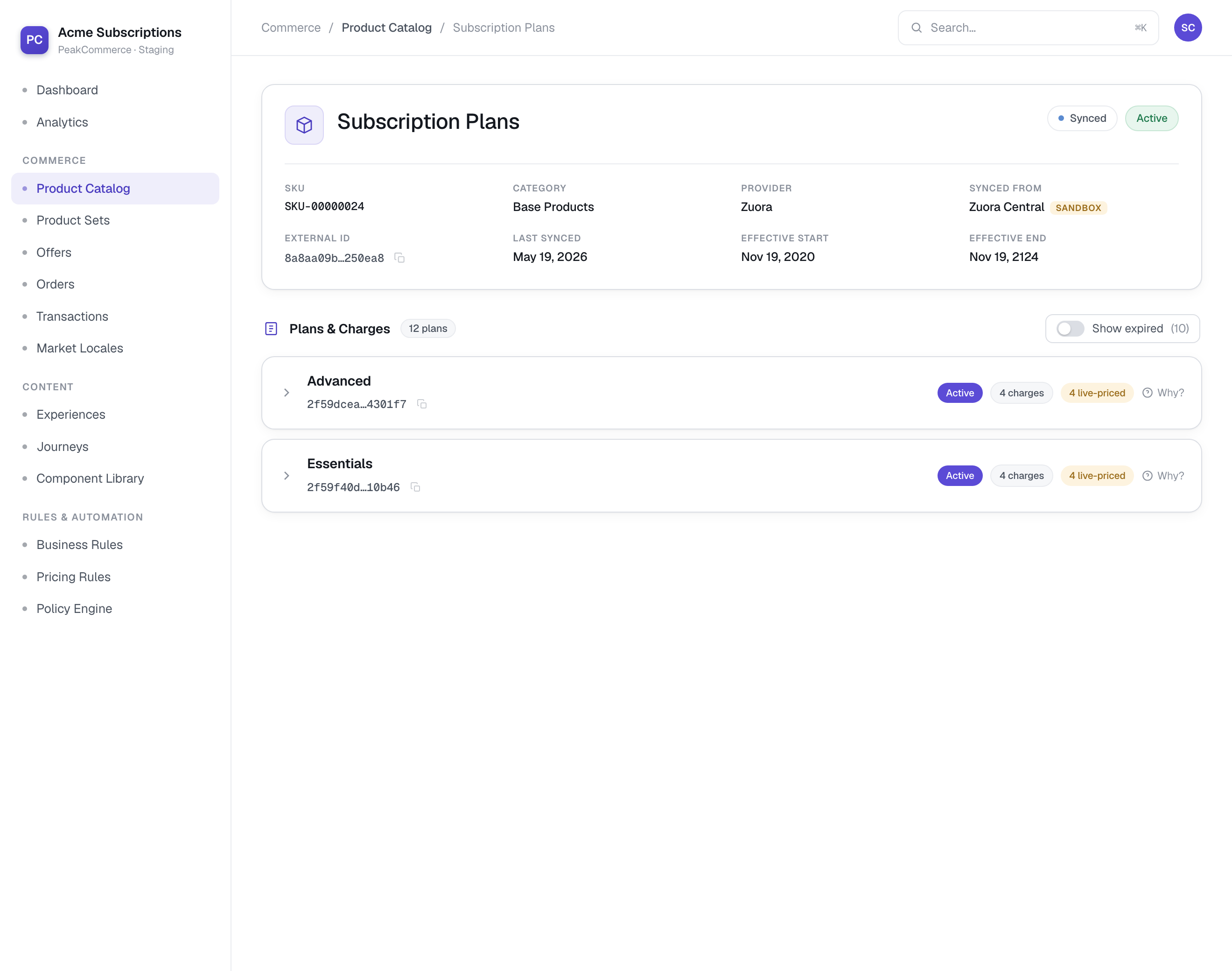
A product's detail — its catalog metadata and provider link up top, then each plan and its charges below.
## Add products
There are two ways to get a product into the catalog, surfaced as buttons at the top of the page:
* **Sync from Provider** — pull products from your billing system (e.g. Zuora) into the catalog and keep them in step. **Synced** products carry their provider link, the source integration name, and a **last-synced** timestamp; the provider stays the source of truth for their underlying charges. Re-run **Sync from Provider** (or **Re-sync from** on a single row) to pick up provider changes.
* **Create Product** — add a product directly in PeakCommerce. The form opens with a **Product Type** picker, and the type you choose shapes the rest of the form:
* **Recurring** — a subscription plan billed on a recurring cadence, priced with one of the pricing models below.
* **Bundle** — groups two or more products to sell together, each with its own activation timing — see [Creating a Product Bundle](/product/using-peakcommerce/products-and-bundles/creating-a-product-bundle.md).
* **One-Time Purchase** — a single, non-recurring purchase: a physical or one-time digital good with a flat price and storefront imagery.
The type is **locked once the product is created** — on the edit page it shows as a read-only field with a lock icon. If a product was created as the wrong type, create a new one rather than trying to convert it.
## Pricing a Recurring product
Creating a Recurring product includes a **Recurring Pricing** card with a real **pricing-model picker**:
* **Flat Fee** — one price, regardless of quantity.
* **Per Unit** — price × quantity.
* **Volume** — one flat rate for the **whole quantity**, based on which band the total quantity falls in.
* **Tiered** — **cumulative**: each band's rate applies only to the units that fall within that band.
Flat Fee and Per Unit take a simple price and currency. Choosing **Volume** or **Tiered** opens a **band editor**: each band has a **From** (min quantity), a **To** (max quantity — only the last band may be left unlimited), and a **price**. Bands must be contiguous — no gaps or overlaps — and the editor validates this inline before you save, suggesting the next band's From automatically.
Below the bands sits a live **"Try a quantity" calculator**: type a quantity and it shows the exact amount that quantity would price at under your bands — the same computation the pricing engine uses at order time — or tells you plainly when no band matches.
> **Volume vs Tiered — the distinction admins get wrong.** The two models use the same band table but bill very differently. Say you have bands **1–100** and **101 and up**, and a customer buys **150**:
>
> * **Tiered** charges *cumulatively*: 100 units at the first band's rate **plus** 50 units at the second band's rate.
> * **Volume** finds the *single* band that contains 150 (the second one) and applies that band's rate to the entire quantity — the first band contributes nothing.
>
> Before activating a banded product, put a few realistic quantities through the **Try a quantity** calculator and confirm the results match your intent.
## Pricing a One-Time Purchase
A One-Time Purchase product gets its own **One-Time Purchase Pricing** card instead:
* **Price** and **currency** — a single flat price; no recurrence, no bands.
* **Image URL** — the primary card thumbnail for the storefront grid.
* **Gallery images** — additional image URLs (one per line) for the item's gallery.
* **Recommended** — a toggle that highlights the item in the storefront grid.
## The product view page
Opening a product from the catalog lands on its **view page** — the read-oriented counterpart to the edit form:
* A header with a **breadcrumb** back to the Catalog, the product's type and Active/Inactive badges, its metadata (SKU, category, provider and source instance, external ID, last-synced and effective dates), and **Edit**/**Delete** actions where your permissions allow.
* A **metrics strip** tuned to the product's type — active plans, charge counts, and live-priced charges for Synced products; pricing-row and bundle-item counts; the price for a One-Time Purchase — plus a **Used in** count on every product.
* **Live Preview** — for PeakCommerce-native products, the page renders the **actual customer-facing card** (the same component the plan picker and storefront use), so what you see here is exactly what customers see and the preview can never drift from the real thing.
* A **Pricing** table that renders the full **From / To / Price** bands for banded models, not just a summary figure.
* **Storefront Details** — for One-Time Purchase goods, the imagery and merchandising fields as they'll appear in the storefront.
* **Used In** — every [Product Set](/product/using-peakcommerce/products-and-bundles/product-sets.md) that carries this product, with the item's classification and the set's status, each linking straight to the set. Check it before deactivating or deleting a product: it tells you exactly which selling surfaces you'd affect.
## Edit a product
The edit page shows **Delete** in the header (for users with the delete permission) and the product type as a **locked, read-only field** — type can't be changed after creation. From here you can change the **name, SKU, category, description**, and **charges/pricing**. The **Plan presentation** section controls how the product appears in the customer/CSR Change-Plan journey — bullet-list **features**, a **quantity unit** and **price-tier** table for tiered base plans, an add-on **markup %**, and a **non-renewable** flag for trials and one-shots. Recurring products manage their pricing rows in the **Pricing Tiers** section, using the same charge models and From/To band editor as at create time. For **Synced** products, edit charges in the billing system and re-sync instead.
## Status and filters
A product's **Status** (for example Active) controls whether it can be sold. Use the **Type, Status, Provider, Category, Support Level,** and **Instance** filters — plus search by name, SKU, or description — to find what you need, and expand a row to see its charges. Last-synced times honor your [Zuora tenant timezone](https://gitlab.com/peakcommerce/peak-help-docs/-/tree/main/integrations/zuora-integration/zuora-billing-integration.md).
## Gotchas
* Only **Active** products are sellable. A draft or inactive product won't resolve in a journey or storefront even if it's added to a Product Set.
* **Volume and Tiered use the same band table but bill differently** — see the callout above, and verify with the **Try a quantity** calculator before going live.
* The **product type is permanent.** Pick Recurring vs One-Time Purchase vs Bundle deliberately at create time; the edit page won't change it.
* To present a curated group of products in a flow, build a **Product Set** (**Commerce → Product Sets**) — don't tie products to a single journey.
* Bulk spreadsheet import/export of products is no longer required — products are synced from the provider or created in the catalog directly.
## Related
* [Products Overview](/product/using-peakcommerce/products-and-bundles/products-overview.md)
* [Creating a Product Bundle](/product/using-peakcommerce/products-and-bundles/creating-a-product-bundle.md)
* [Commerce actions in journeys](/product/journeys-and-pages/journey-steps/commerce-actions.md)
---
# Agent Instructions
This documentation is published with GitBook. GitBook is the documentation platform designed so that both humans and AI agents can read, navigate, and reason over technical content effectively. Learn more at gitbook.com.
## Querying This Documentation
If you need additional information that is not directly available in this page, you can query the documentation dynamically by asking a question.
Perform an HTTP GET request on the current page URL with the `ask` query parameter, and the optional `goal` query parameter:
```
GET https://docs.peakcommerce.com/product/using-peakcommerce/products-and-bundles/managing-products.md?ask=&goal=
```
`ask` is the immediate question: it should be specific, self-contained, and written in natural language.
`goal` is optional and describes the broader end goal you are ultimately trying to accomplish on behalf of the user. GitBook uses it to tailor the answer towards what is most useful for that goal.
The response will contain a direct answer to the question and relevant excerpts and sources from the documentation.
Use this mechanism when the answer is not explicitly present in the current page, you need clarification or additional context, or you want to retrieve related documentation sections.