> For the complete documentation index, see [llms.txt](https://docs.peakcommerce.com/llms.txt). Markdown versions of documentation pages are available by appending `.md` to page URLs; this page is available as [Markdown](https://docs.peakcommerce.com/product/customer-success-portal/finding-accounts.md).

# Finding Accounts

PeakCommerce gives customer-success teams two complementary ways to reach a customer account: a **global search** in the header that works from anywhere in the app, and the **Your Accounts** list — a filterable, sortable workspace view of every account you're responsible for, topped by summary tiles that surface the accounts worth looking at today. Both are **permission-gated and territory-scoped**: you only ever see the accounts (and other records) your [role and profile](/product/using-peakcommerce/users-and-user-roles/user-roles.md) allow.

## Global search — from anywhere

The search box in the header is available on every page. Press **⌘K** (Mac) or **Ctrl+K** (Windows/Linux) to jump into it, or just click it and start typing — results appear after the second character.

**Finding an account.** Accounts match on **billing name**, **account number**, **external account id**, or **CRM id**, and each account result shows the CRM id and account number under the name so you can confirm you have the right one. Selecting an account result takes you **straight into that account's workspace** — no detour through the list.

**Other record types.** The same search also reaches **organizations, contacts, orders, subscriptions, conversations, products, and users**, with results grouped by type. Each type is gated by the *same* permission that guards its own page — if your profile can't read contacts, contact results simply don't appear. There's no separate "search permission" to manage, and no way for search to show you more than the corresponding page would.

**Territory scoping.** For CSRs (and partners) whose record access is limited to assigned accounts, account and order results are filtered to that accessible set. Record types that can't be tied to a specific account are withheld from territory-scoped users entirely — search fails closed rather than leaking anything cross-territory.

**Recent searches.** When you focus the empty search box, your recent searches appear for one-click reuse. History is **private per user** — your searches are never visible to teammates, and theirs are never visible to you.

**Keyboard driving.** Arrow keys move through results, **Enter** opens the selected one, **Esc** closes the dropdown.

### Global search gotchas

* Some result rows are **informational for your role** — shown so you know the record exists, but not clickable because no detail page exists on your surface (hovering explains this). For example, an admin who isn't a CSR can see account matches but has no account workspace to open them in.
* Results need at least **two characters** — a single letter won't search.

## The "Your Accounts" list

The accounts list is the workspace home: every account you can access, ranked, searchable, and filterable, with the page you're viewing hydrated live from the billing system so figures are current.

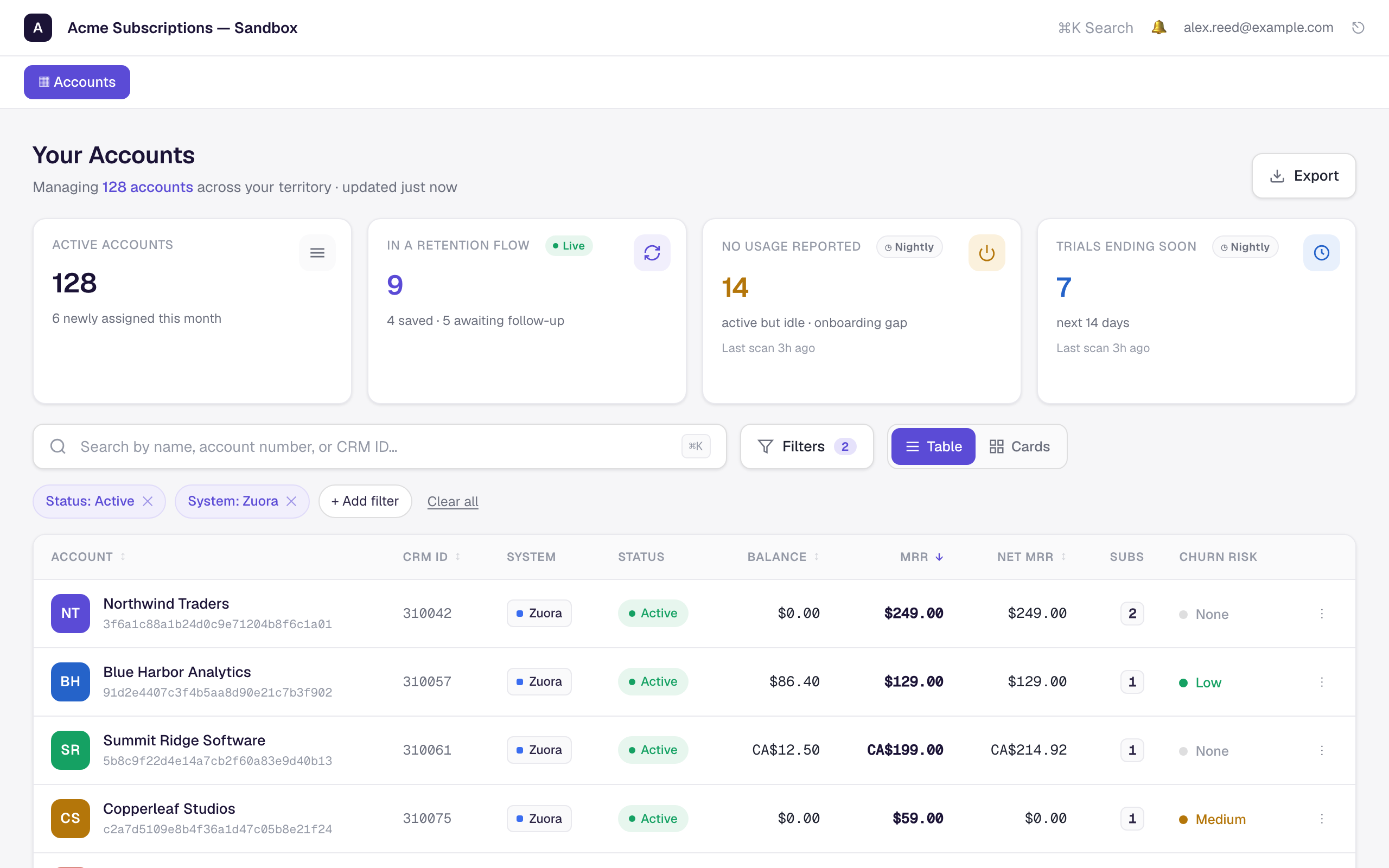
<figure><img src="/files/DgNCURVslmo3UyJnkuNY" alt="The Your Accounts workspace with four summary tiles (live and nightly), a search box, filter chips, and a sortable accounts table with CRM ID, MRR, and churn-risk columns"><figcaption><p>The <strong>Your Accounts</strong> list — live tiles (Active accounts, In a retention flow) beside nightly-scan tiles, with search, filter chips, and sortable Net MRR / CRM-id columns.</p></figcaption></figure>

### Search, filters, and sorting

* **Search** matches across **name, account number, or CRM ID** (it also matches status, billing system, and other visible column values), narrowing the list as you type.
* The **Filters** button opens a condition builder for precise, multi-condition queries (AND/OR groups over account fields). Applied conditions show as **chips** above the table — remove one with its **×**, add more with **+ Add filter**, or **Clear all**. Applied filters are carried in the page URL, so you can bookmark or share a filtered view as a deep link.
* **Columns are sortable** — click a header to sort ascending, again for descending, and a third time to clear. Blank values always sort last so empty cells never crowd the top. Sortable columns include **Net MRR** and the **CRM id**, alongside name, status, balance, renewal date, subscription count, and churn risk. Admins can tailor which columns appear (including extra billing-system fields) when configuring the page.

### The summary tiles

Four tiles above the list give you a working read on your book of business. They come in two kinds, and the distinction matters:

| Tile                    | Kind                           | What it counts                                                                                    |
| ----------------------- | ------------------------------ | ------------------------------------------------------------------------------------------------- |
| **Active accounts**     | Live                           | Accounts currently active in the billing system.                                                  |
| **In a retention flow** | Live (badged **Live**)         | Accounts with an active cancellation / save journey session right now — a real-time churn signal. |
| **No usage reported**   | Nightly (badged **◷ Nightly**) | Active accounts the most recent scan found no usage for — "active but idle."                      |
| **Trials ending soon**  | Nightly (badged **◷ Nightly**) | Trials whose end date falls in the next 14 days.                                                  |

The two **live** tiles are computed in real time on every visit. The two **nightly** tiles read signals from an **opt-in nightly scan**; when the scan is enabled, the tile shows when it last ran (for example "scan 3h ago") so you know how fresh the number is. If the scan isn't enabled for your organization, the tile shows an em dash and **"Not currently tracked"** — that's a configuration state, not a zero. Enabling the scans is an admin action, so if you want those signals, ask your administrator.

### Accounts-list gotchas

* A **"Not currently tracked"** tile doesn't mean no idle accounts or no ending trials — it means the nightly scan is switched off, so the signal isn't being collected.
* Nightly numbers are **as of the last scan**, not this second. Check the scan timestamp on the tile before acting on a borderline count.
* The list only contains accounts within your territory scope. If an account you expect is missing, it's usually a [record-access](/product/using-peakcommerce/profiles-and-permissions/access-levels-for-permissions.md) question, not a data problem.

## Related

* [Customer Success Portal Overview](/product/customer-success-portal/customer-success-portal-overview.md)
* [Working with an Account](/product/customer-success-portal/working-with-an-account.md)
* [User Roles](/product/using-peakcommerce/users-and-user-roles/user-roles.md)


---

# Agent Instructions
This documentation is published with GitBook. GitBook is the documentation platform designed so that both humans and AI agents can read, navigate, and reason over technical content effectively. Learn more at gitbook.com.

## Querying This Documentation
If you need additional information that is not directly available in this page, you can query the documentation dynamically by asking a question.

Perform an HTTP GET request on the current page URL with the `ask` query parameter, and the optional `goal` query parameter:

```
GET https://docs.peakcommerce.com/product/customer-success-portal/finding-accounts.md?ask=<question>&goal=<endgoal>
```

`ask` is the immediate question: it should be specific, self-contained, and written in natural language.
`goal` is optional and describes the broader end goal you are ultimately trying to accomplish on behalf of the user. GitBook uses it to tailor the answer towards what is most useful for that goal.

The response will contain a direct answer to the question and relevant excerpts and sources from the documentation.

Use this mechanism when the answer is not explicitly present in the current page, you need clarification or additional context, or you want to retrieve related documentation sections.
